Computer Hardware Basics
A simple guide to understand computer parts, what they do, and how to choose the right hardware.
What is “hardware”?
Hardware is the physical parts you can touch: RAM, storage (SSD/HDD), CPU, motherboard, power supply, fan, graphics card, network card, and more.
What you will learn
- What each part does (in simple words)
- How to compare sizes like 4GB / 8GB / 16GB RAM
- Basic buying knowledge (what matters, what doesn’t)
- How to identify common issues before replacing parts
Next: open the Core Components tab to learn the main parts first.
Core Components
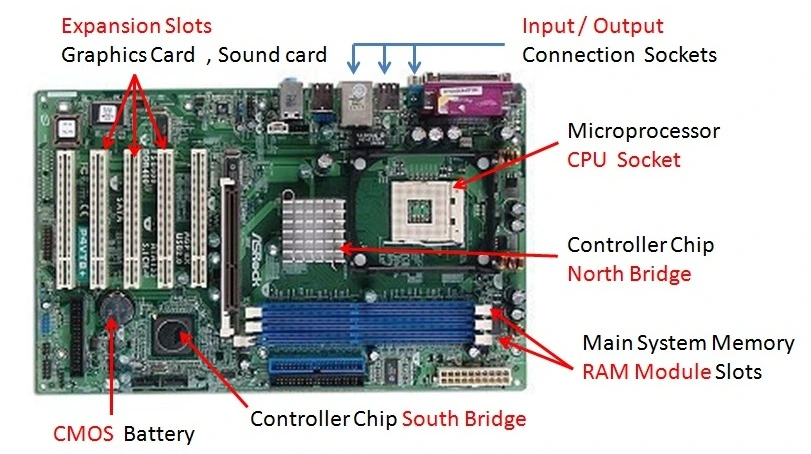
These are the main parts inside a PC. Understanding them makes it easy to choose or upgrade a computer.

CPU (Processor) — Intel / AMD
Benefit: The CPU is like the “brain”. It affects speed for almost everything.
- Intel: Core i3 / i5 / i7 / i9 (newer generations are faster)
- AMD: Ryzen 3 / 5 / 7 / 9 (great performance and value)
What to check: generation, number of cores, and clock speed (GHz). Higher is usually better—but balance matters.

RAM (Memory)
Benefit: More RAM helps your PC run more apps at the same time (multitasking).
- 4GB: Basic usage (not recommended today)
- 8GB: Good for office work, browsing, classes
- 16GB: Best for smooth performance, multiple tabs, light design
- 32GB+: For heavy work like video editing / advanced design
Common RAM types: DDR4 (older) and DDR5 (newer). DDR5 is faster, but it needs a DDR5 motherboard.

Storage (SSD / HDD)
Benefit: Storage holds your files and Windows. A faster drive makes the whole PC feel faster.
- SSD: Very fast, best for Windows & programs
- HDD: Bigger size for low cost, slower speed
Simple recommendation: Use an SSD for Windows + HDD (optional) for large files.
Motherboard & Power Supply (PSU)
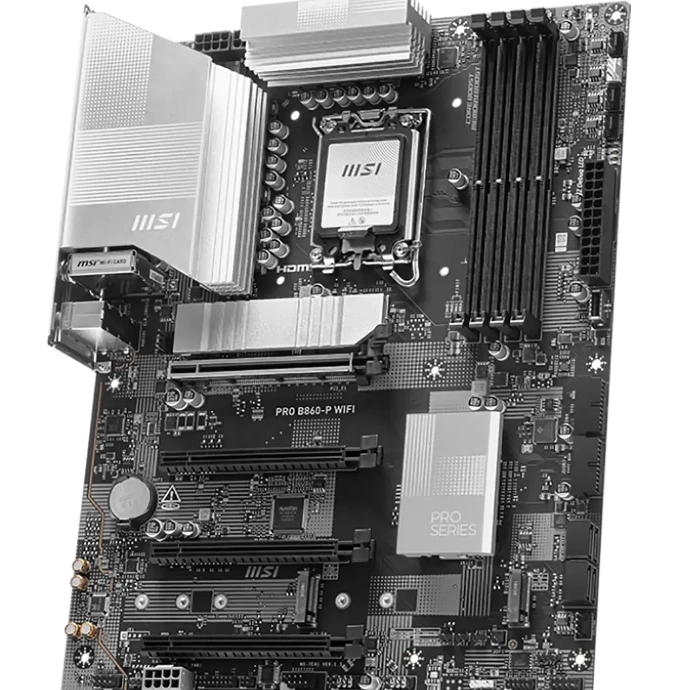
Motherboard benefit: It connects all parts. It decides compatibility (CPU type, RAM type, ports).
PSU benefit: It provides stable power. A weak PSU can cause restart or no power.
- Always choose a quality PSU with enough watt (W) for your build
- Better PSU = safer PC and better stability

Expansion Slots (PCIe)
Benefit: Expansion slots let you add extra cards to the PC when the motherboard does not have something built‑in.
- Most modern expansion is called PCI Express (PCIe)
- Used for graphics cards, Wi‑Fi cards, extra LAN ports, capture cards, and more
- Different sizes exist (small and large). The card must match the slot size.
Simple idea: PCIe is like “extra ports inside the PC”.
Network (LAN) & Wi‑Fi
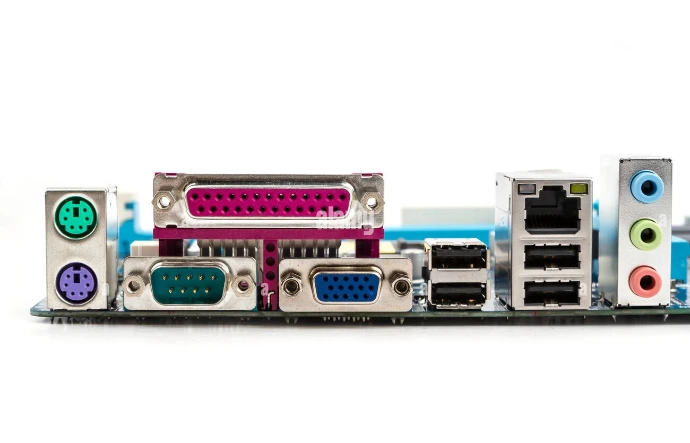
Benefit: Network lets your PC connect to the internet and to office devices (routers, switches, printers, servers).
- LAN (Ethernet): Usually built‑in on most motherboards (one port is common).
- Need 2+ LAN ports? You can add a network card using a PCIe slot (useful for special office/network setups).
- Wi‑Fi: Some motherboards come with Wi‑Fi built‑in, but many do not.
If not built‑in, you can add Wi‑Fi using either:
- PCIe Wi‑Fi card (internal card)
- USB Wi‑Fi dongle (easy plug‑and‑play option)
Simple recommendation: For best stability, use LAN. For easy wireless, use a USB Wi‑Fi dongle or a PCIe Wi‑Fi card.

Graphics & Gaming Accessories
If you do gaming, design, or 3D work, these parts become very important.
Graphics Card (GPU)
Benefit: Better graphics, smoother games, and faster work for design/3D/video (in many cases).
- VRAM (memory on GPU): 4GB / 6GB / 8GB / 12GB+
- More VRAM helps for higher resolution, textures, and heavy design tasks
If you don’t game and don’t do design, you may not need a separate GPU.
Cooling (Fan / CPU Cooler)
Benefit: Keeps temperature safe, improves stability, and avoids sudden shutdowns.
- Basic fan is OK for simple use
- Better cooler helps for high performance CPUs and long gaming sessions
Gaming Case
Benefit: Better airflow = better cooling. Also easier cable management and better upgrade space.
- Choose a case with good airflow (front mesh is usually better)
- Make sure your GPU and cooler fit inside
Recommended for a simple gaming setup
- 16GB RAM
- SSD for Windows and games
- Good airflow case + extra fans
- Trusted PSU with enough watt

Accessories & Peripherals
Peripherals are devices you connect to the PC for work, study, meetings, or printing.
Webcam
Benefit: Clear video calls for classes and meetings.
- Look for 1080p for good quality
- Built‑in microphone can help, but a headset is better
Printer
Benefit: Print documents, invoices, and study materials.
- Inkjet: good for color photos
- Laser: faster, great for a lot of pages
Scanner
Benefit: Convert paper documents into PDF/JPG files.
- Useful for office and school documents
- Many printers include a scanner (all‑in‑one)
Other helpful accessories
- Keyboard & mouse
- Headset (better voice for calls)
- External storage (USB / external SSD)
- Wi‑Fi adapter (if your PC has weak Wi‑Fi)

Cables (Types & Usage)
A quick guide to the most common computer cables—so you can choose the right one for charging, data transfer, video, audio, and networking.
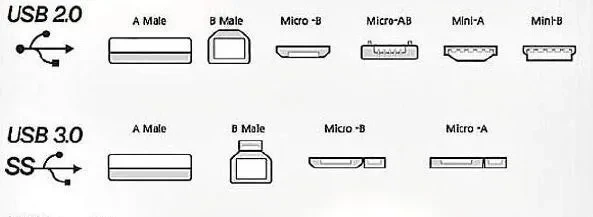
USB Cables (Different Types & Usage)
- USB-A (classic rectangular): common on PCs, chargers, and hubs
- USB-C (reversible): modern laptops/phones; charging + fast data + sometimes video
- Micro-USB: older Android devices and accessories
- Mini-USB: older cameras and some special devices
Tip: Some USB-C cables are charging-only, while others support fast data and video—choose based on your device and need.
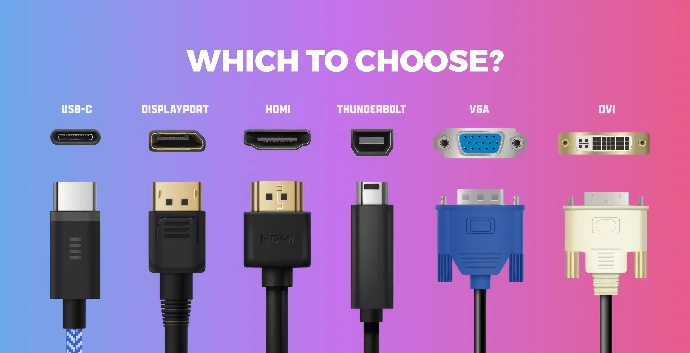
Video Cables (HDMI / DVI / DP / VGA)
- HDMI: most common for monitors/TVs; carries video + audio
- DisplayPort (DP): great for PC monitors; high refresh rate support
- DVI: older monitor cable; usually video only
- VGA: very old (analog); use only if needed
Simple recommendation: Use HDMI or DP whenever possible for the best quality.

Audio Cables
- 3.5mm AUX: headphones, speakers, microphones (common)
- RCA: red/white audio for speakers and older sound systems
- Optical (TOSLINK): digital audio for soundbars/home theater
For the cleanest setup on new devices, USB audio (USB headset / USB sound card) can also be a good option.
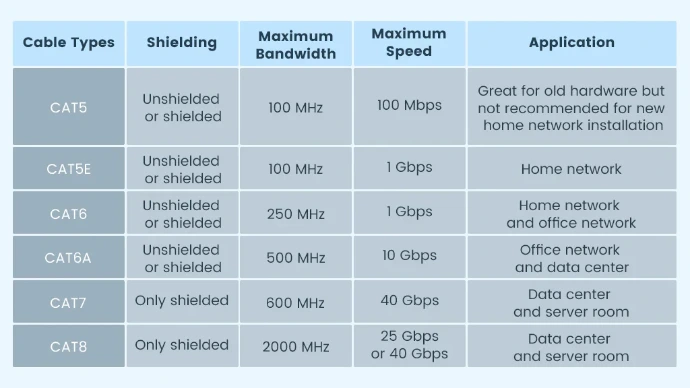
LAN / Ethernet Cables (Cat6 / Cat6a / Cat7 / Cat8)
- Cat6: good for most offices/homes (fast and reliable)
- Cat6a: better shielding; good for longer runs and higher speed
- Cat7: heavy shielding; used in some advanced setups
- Cat8: for very high speed and data centers (shorter distance use)
Simple recommendation: For most customers, Cat6 or Cat6a is the best choice.
Any Other Cables (Common Requests)
- Power cables: PC power cord, laptop adapters, kettle leads
- SATA cables: connect HDD/SSD inside a desktop
- USB extension cables: extend reach for mouse, keyboard, Wi‑Fi dongle
- Converters/adapters: HDMI→VGA, USB‑C→HDMI, DP→HDMI, etc.
- Charging cables: choose the correct connector + safe quality
- Fiber cables: for special networking/internet installations
If you tell me your best-selling cable brands/models, I can tailor this list to match your inventory.
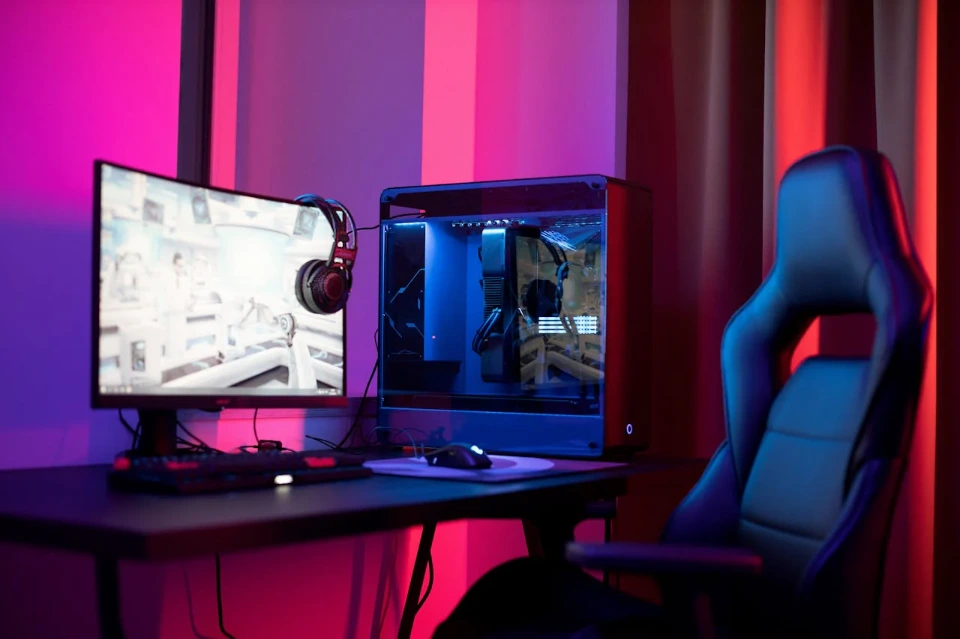
Monitors (Office / Gaming) & Interactive Displays
The right screen improves comfort, productivity, and performance. Here’s what to check before buying.

Office Monitors (Work & Productivity)
- Best for: Excel, email, browsing, ERP systems, general business use
- Comfort matters: adjustable stand (height/tilt), anti‑flicker, low blue light
- Resolution: Full HD is fine; 2K/4K gives sharper text on larger screens
- Size: 24–27 inch is a popular balance for desks

Gaming Monitors (Speed & Smoothness)
- Refresh rate: 120Hz / 144Hz / 165Hz / 240Hz (higher = smoother)
- Response time: lower is better for fast games
- Adaptive sync: helps reduce screen tearing (if supported)
- Resolution vs FPS: 1080p for high FPS, 1440p for balanced, 4K for detail

Display Technology (LED / QLED / More)
- LED: common, reliable, good value
- QLED: brighter colors and better brightness (popular for media and premium screens)
- Panel types: IPS (better colors/angles), VA (better contrast), TN (fast but weaker colors)
If you do design work, color accuracy and IPS panels are usually the priority.

Other Important Criteria
- Ports: HDMI/DP/USB‑C, USB hub, audio out
- Ergonomics: stand adjustability + VESA mount support
- Curved vs flat: curved can be immersive; flat is simple for office
- Warranty: important for business and heavy use

Interactive Displays (Touch Screens)
Best for: classrooms, meeting rooms, presentations, digital collaboration, and video conferencing setups.
- Touch capability: multi‑touch support for writing and collaboration
- Size: choose based on room size and viewing distance
- Built‑in features: Android/OPS slot, wireless screen sharing, speakers/camera options
- Mounting: wall mount or mobile stand (trolley)
If you share your typical customer use case (school / boardroom / training), I can refine the recommendations.

Compatibility & Buying (Quick Checklist)
This section helps you avoid the most common mistake: buying a part that does not fit or does not work with your current PC.
Before you buy, confirm these 6 items
- CPU + motherboard match: same socket / supported generation
- RAM type: DDR4 or DDR5 (must match the motherboard)
- Storage type: SATA SSD/HDD or NVMe (M.2)
- Power supply (PSU): enough watt + good quality
- Case size: motherboard size + GPU length + cooler height
- Ports you need: HDMI/DP, USB‑C, Wi‑Fi, LAN, etc.
Before you buy, confirm these 6 items
- CPU + motherboard match: same socket / supported generation
- RAM type: DDR4 or DDR5 (must match the motherboard)
- Storage type: SATA SSD/HDD or NVMe (M.2)
- Power supply (PSU): enough watt + good quality
- Case size: motherboard size + GPU length + cooler height
- Ports you need: HDMI/DP, USB‑C, Wi‑Fi, LAN, etc.
If you send your current PC specs (CPU / motherboard / RAM / PSU), we can confirm compatibility quickly.
Simple upgrade recommendations
- PC is slow: upgrade HDD → SSD (biggest improvement)
- Too many tabs/apps: upgrade 8GB → 16GB RAM
- Gaming FPS low: upgrade GPU (and check PSU)
- Wi‑Fi weak: add a USB Wi‑Fi adapter or PCIe Wi‑Fi card
- Need more storage: add 1TB/2TB drive (SSD or HDD)
Tip: Upgrade step by step, not everything at once. It saves money and makes troubleshooting easier.
Quick “Right PC for the job” guide
Office / Study
- 8GB–16GB RAM
- SSD storage
- Integrated graphics is fine
Gaming
- 16GB RAM
- SSD storage
- Dedicated GPU
Design / 3D / Video
- 16GB–32GB RAM
- Fast SSD (NVMe if possible)
- Strong CPU + GPU

Troubleshooting (Common Problems)
Use this simple guide to understand what is wrong before you replace parts.
PC not turning ON (No power)
- Check power cable and wall socket
- Check PSU switch is ON
- Check motherboard power cables (24‑pin + CPU 8‑pin)
No display (Black screen)
- Try another HDMI/DP cable
- Reseat RAM (remove and install again)
- If you have a GPU, connect the monitor cable to the GPU output
PC is slow
- Upgrade from HDD to SSD (biggest improvement)
- Increase RAM (8GB → 16GB for smooth use)
- Check storage free space
Overheating / Loud fan
- Clean dust from fans and filters
- Check airflow (case fans)
- CPU cooler may need re‑installation / thermal paste
Need help? If you share the issue (no power / no display / slow / overheating), we can advise the best solution.